
Blog · 4 March 2025
How to Use Bleed Printing for Professional Print Results

What Do We Mean by 'Bleed' and 'Cut Marks'?
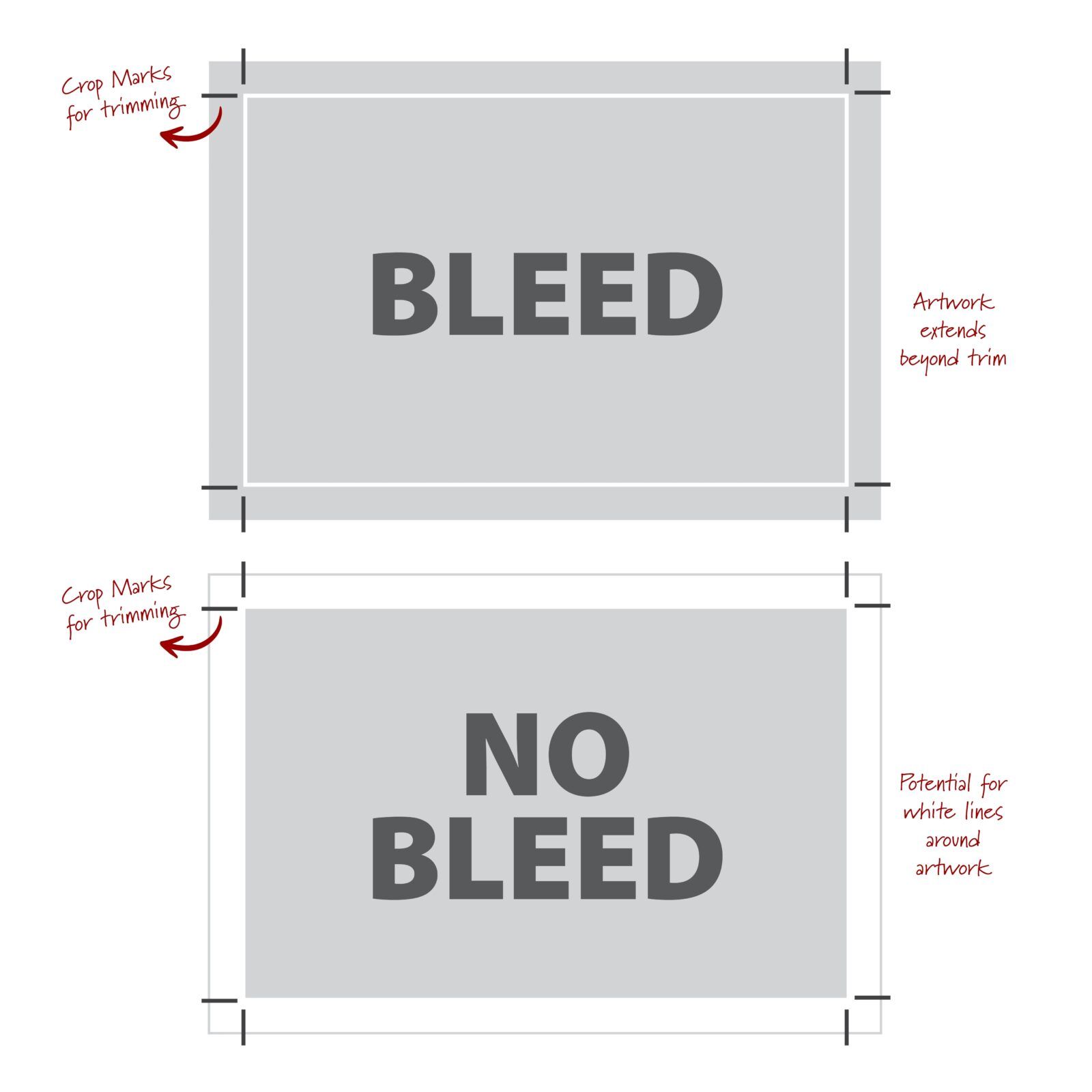
Bleed is the extra space around the outside of your document that will be trimmed off during production.
Why is bleed needed for your artwork? Although our cutting machines are highly accurate, slight movements during production can cause the machine to cut slightly beyond the intended trim line. If your artwork does not include bleed, this could result in thin white lines appearing at the edges of your print.
To prevent this, we recommend adding 3mm of extra artwork or background beyond your document's final size. This ensures that even with minor cutting shifts, your design remains clean and professional.
How to Add Bleed to Your Design
Setting up bleed depends on the design software you are using. Here's how to do it in Canva, InDesign, and Photoshop.
Using Canva
- Open your existing design in Canva.
- Click File → View Settings → Show Print Bleed.
- A dashed line will appear near the edges of your design. If you see white gaps, extend your background or image to cover them.
- Save your file as a PDF Print with crop marks included.
Using InDesign
- Click File → Document Setup.
- Find the Bleed section and enter 3mm in the Top, Bottom, Left, and Right boxes.
- Adjust your design so that it extends into the bleed area.
- When saving your PDF, select the option to include crop marks to indicate where the machine should cut.
Using Photoshop
- Go to Image → Canvas Size and set the units to millimeters.
- Increase the Width and Height by 6mm (3mm on each side).
- To add crop marks: go to File → Print, select Microsoft Print to PDF, under Printing Marks check Corner Crop Marks, click Bleed and set it to 3mm, then save as a PDF.
What is the 'Safety Margin' or 'Safe Zone'?
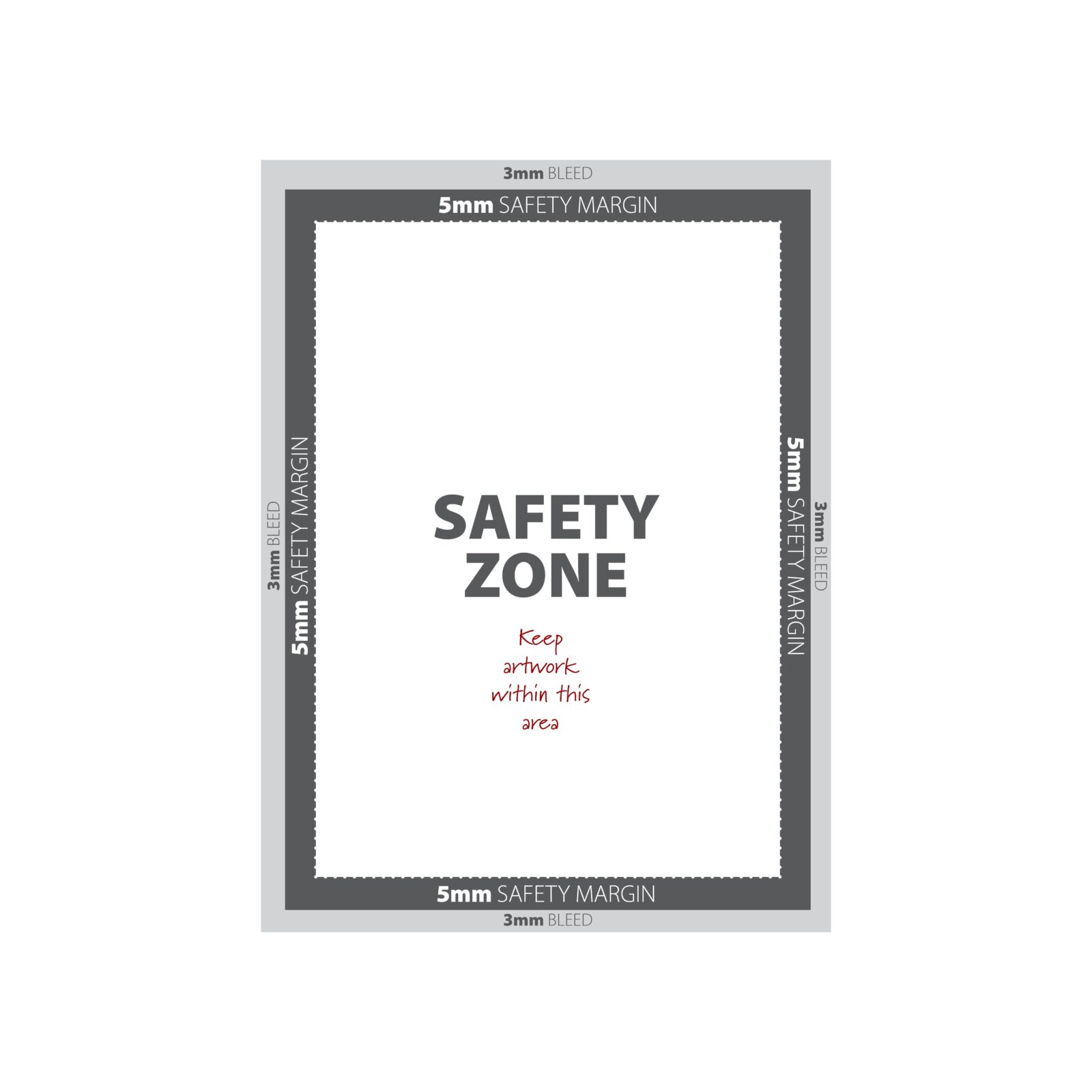
To ensure important text and graphic elements are not cut off, we recommend keeping a 5mm safety margin on all sides of your design.
This means that any crucial content (such as text, logos, or key visuals) should be placed at least 5mm away from the trim line. This prevents important elements from being lost if there is a slight shift during the cutting process.
Final Tips for Print-Ready Files
- Always use high-resolution images (300dpi or more) to ensure a sharp, clear print.
- Save your file as a PDF with bleed and crop marks included.
- Double-check your design to ensure all text and key graphics are within the safe zone and that background elements extend to the bleed area.
By following these steps, you will ensure a professional, high-quality print every time.
If you need assistance setting up your files correctly, reach out to us, and we will take care of it for you.
More from the blog


Got a print project in mind?
Our Killarney studio can take it from artwork to finished print. Tell us what you need.
Get a quote